Astra is one of the most popular WordPress themes because it is fast, lightweight, and easy to customize. The best part? You don’t need any coding skills to make your website look professional.
In this guide, you’ll learn step-by-step how to customize the Astra theme using only WordPress settings.
What Is Astra Theme?
Astra is a free WordPress theme designed for speed and flexibility. It works perfectly with the WordPress Customizer and popular page builders.
Why beginners love Astra:
-
No coding required
-
Live preview customization
-
Mobile-friendly
-
Works with Elementor & Gutenberg
Step 1: Install and Activate Astra Theme
Before customization, install Astra.
Steps:
-
Go to WordPress Dashboard
-
Click Appearance → Themes
-
Click Add New
-
Search Astra
-
Click Install → Activate
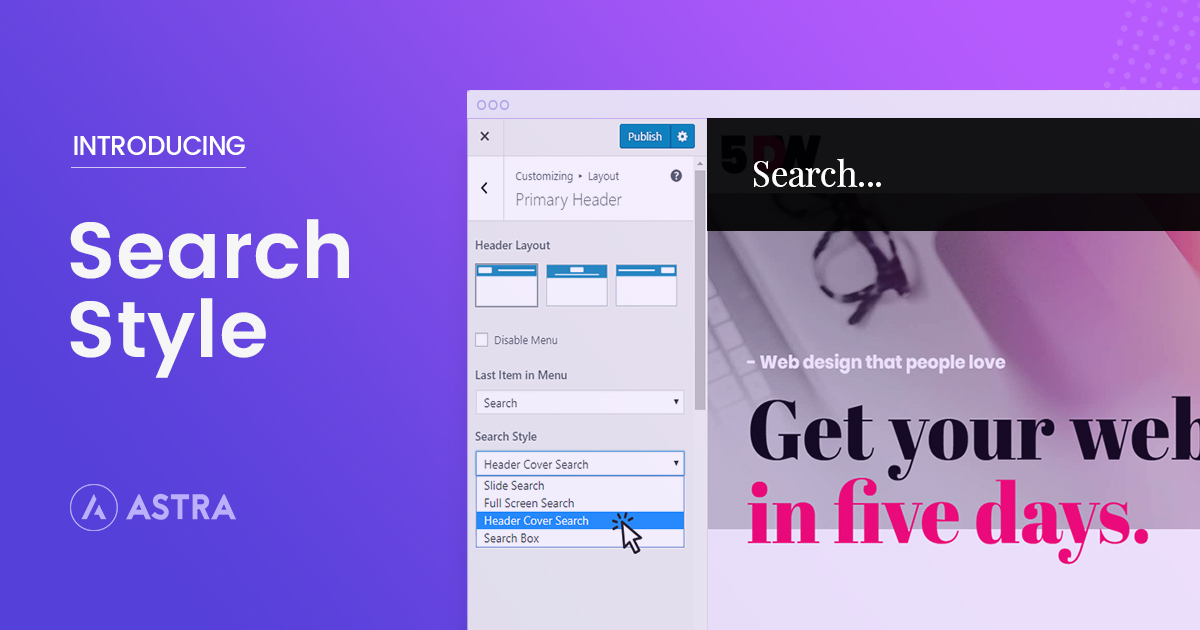
Step 2: Open WordPress Customizer
All Astra settings are inside the Customizer.
How to open:
-
Go to Appearance → Customize
You can see all changes live, without saving first.
Step 3: Customize Logo & Site Title
Steps:
-
Click Site Identity
-
Upload your logo
-
Edit site title & tagline
-
Add site icon (favicon)
No Photoshop or coding needed.
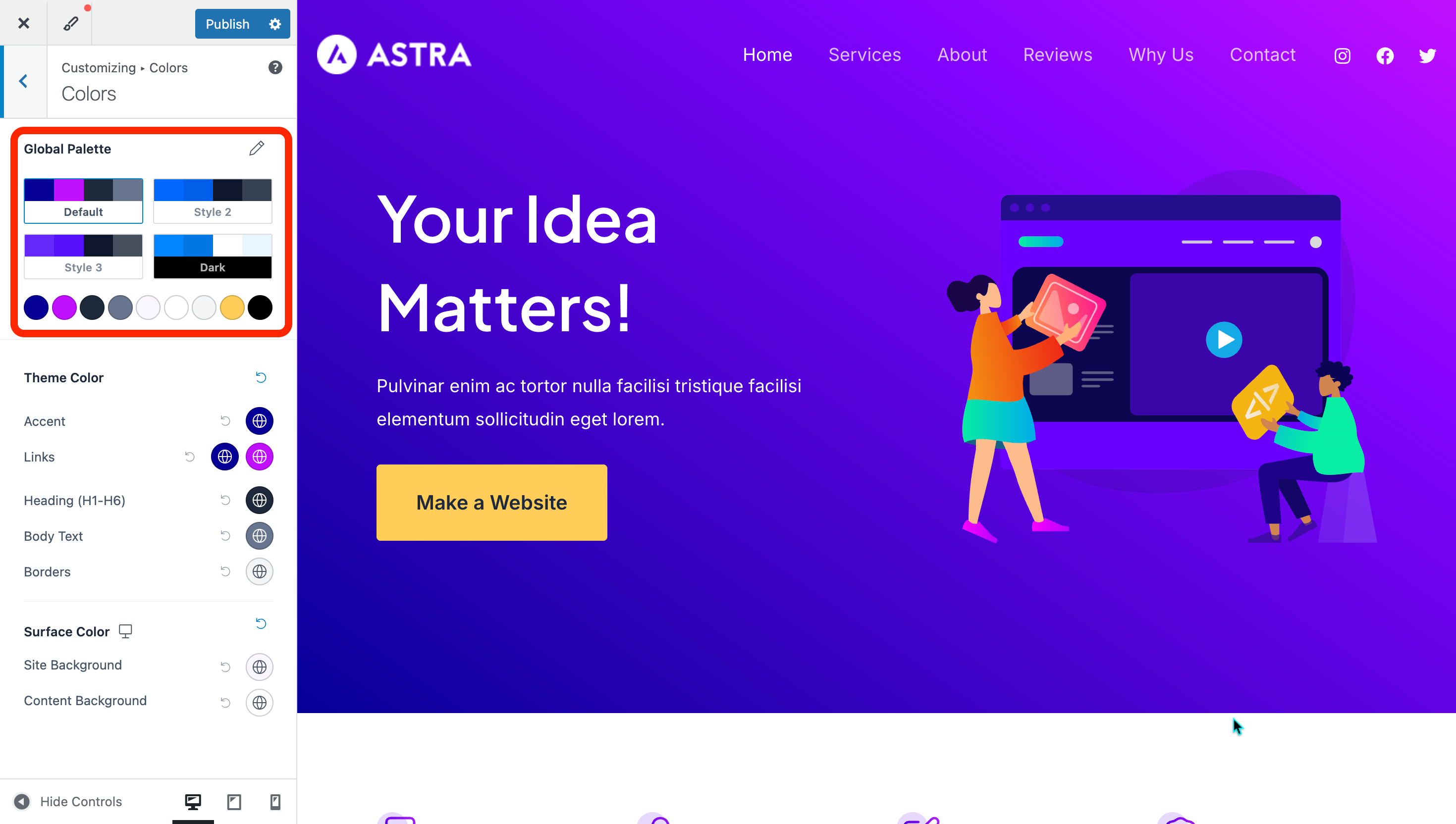
Step 4: Change Colors Easily
Astra allows full color control.
You can change:
-
Background color
-
Text & link colors
-
Header & footer colors
Path:
Customize → Global → Colors
Step 5: Change Fonts (Typography)
No CSS required.
You can control:
-
Font family
-
Font size
-
Line height
-
Heading fonts
Path:
Customize → Global → Typography
Step 6: Customize Header & Menu
Astra header builder is drag-and-drop.
You can:
-
Move logo position
-
Change menu style
-
Add buttons
Path:
Customize → Header Builder
Step 7: Customize Footer
Footer options:
-
Edit copyright text
-
Change footer layout
-
Adjust colors
Path:
Customize → Footer Builder
Step 8: Blog & Page Layout Settings
You can customize layouts without coding.
Options include:
-
Sidebar position
-
Content width
-
Blog post style
Path:
Customize → Blog
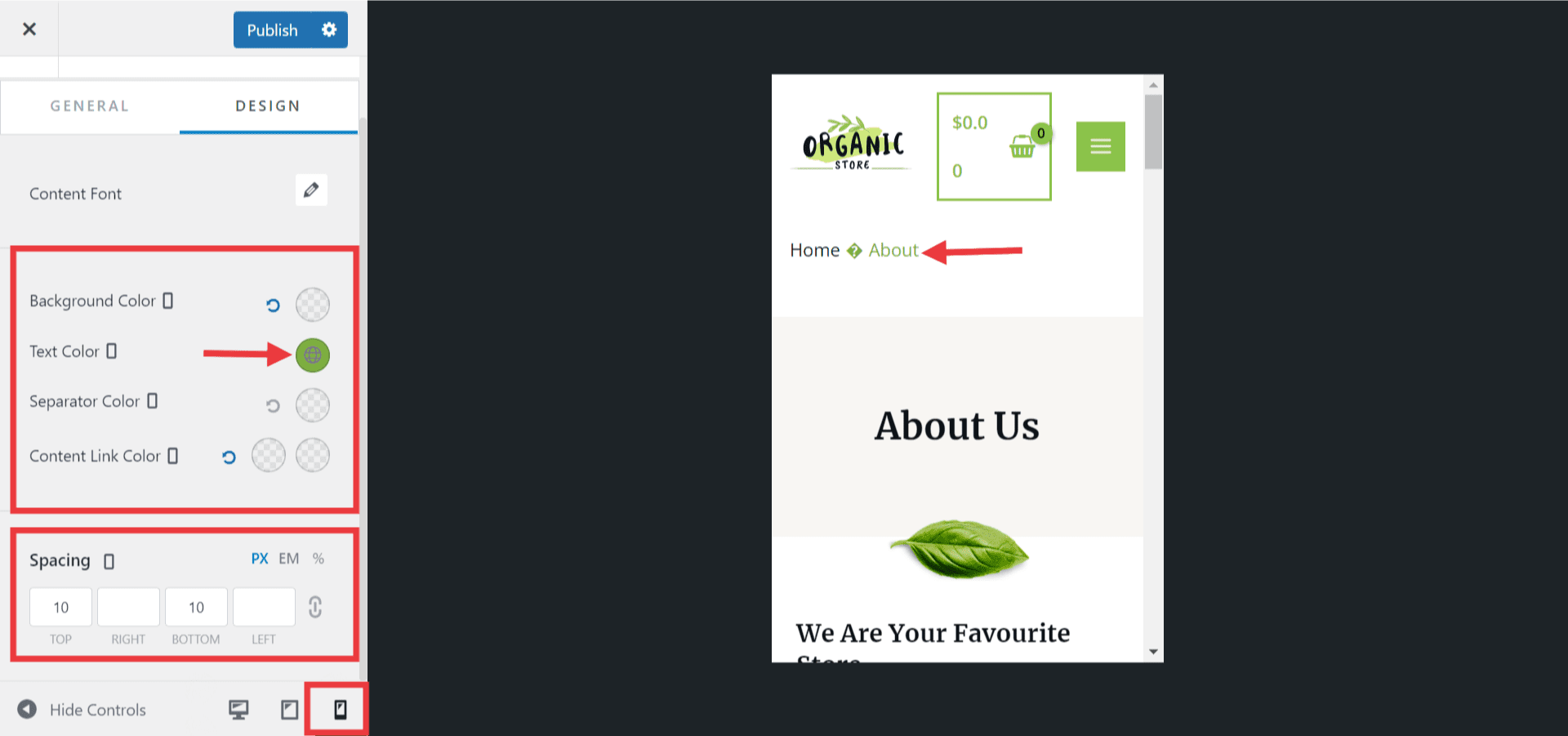
Step 9: Mobile Customization
Astra lets you customize mobile view separately.
📱 Change:
-
Font sizes
-
Header layout
-
Spacing
Use Desktop / Tablet / Mobile icons in Customizer.
Bonus: Astra Starter Templates
Want a ready-made website?
Steps:
-
Install Starter Templates plugin
-
Import any demo
-
Edit text & images
Perfect for beginners.
Final Thoughts
Customizing the Astra theme without coding is easy. With the WordPress Customizer, you can control design, layout, fonts, colors, header, footer, and mobile view—all with clicks.
Astra is one of the best themes for beginners.